Automated Testing
Location: Sidebar → Automated Testing
Automated Testing turns your saved collection requests into executable test plans with configurable pass/fail criteria.
Creating a Test Plan
- Click New Test Plan and give it a name.
- Click Add Test Case.
- Select a request from your collections, or use a generated request.
- Optionally override the auth context for this specific test case.
- Choose a pass criterion (see below).
- Repeat for each test case.
Match Criteria
Every criterion (except Response time under) supports a Pass on Match / Fail on Match toggle. Use "Pass on Match" (the default) for positive assertions and "Fail on Match" for negative assertions.
The criteria are organised into four sections to clarify what part of the response each criterion evaluates:
Error Matches
These criteria evaluate the error field of the Supabase response.
| Criterion | Passes When (Pass on Match) | Fails When (Fail on Match) |
|---|---|---|
| No Error | The request completes without a Supabase error. | The request completes without error (use this to assert that an error should occur). It’s essentially saying that if an error occurs, then it counts as a success. |
| Error Contains | The request returns an error containing the search string. Leave the value empty to match any error. Searches the full error string (code, message, details, hint) with case-insensitive matching. | The request returns an error containing the search string (fail when the error matches). |
Data Matches
These criteria evaluate the data field of the Supabase response.
| Criterion | Passes When (Pass on Match) | Fails When (Fail on Match) |
|---|---|---|
| Response Contains | The response body includes a specific string or value. | The response body includes the string (fail when the string is found). |
| Response Contains Rows | The response contains all the specified rows (order-independent, partial field matching). Provide a JSON array of expected row objects. | All specified rows are found (fail when all rows match). |
| Response Row Equals | The response contains exactly one row matching all specified fields. Provide a JSON object of expected key-value pairs. | The single row matches all specified fields (fail when it matches). |
| Rows Returned | The result contains at least one row. | The result contains at least one row (fail when rows are present). |
| Exact Row Count | The result contains exactly N rows (configure N). | The result contains exactly N rows (fail when the count matches). |
| Empty Result | The result contains no rows. | The result is empty (fail when the result is empty). |
| File Returned | A file or blob is present in the response (for storage downloads). | A file or blob is present in the response (fail when a file is returned). |
HTTP Matches
These criteria evaluate the HTTP status and statusText fields of the response.
| Criterion | Passes When (Pass on Match) | Fails When (Fail on Match) |
|---|---|---|
| HTTP Response Code | The HTTP status code matches the configured value(s). Separate multiple codes with |. | The HTTP status code matches (fail when the code matches). |
| HTTP Response Text | The HTTP status text matches (case-insensitive). | The HTTP status text matches (fail when the text matches). |
Latency
| Criterion | Passes When (Pass on Match) | Fails When (Fail on Match) |
|---|---|---|
| Response Time Under | The request completes in fewer than N milliseconds. | (no fail variant — always uses pass on match) |
Supabase Response Anatomy
Every Supabase client call returns a response object with five fields. Understanding these fields helps you choose the right pass criteria:
| Field | Type | Description |
|---|---|---|
data | any | The successful result — rows from a query, a file blob from storage, an edge-function body, etc. null when an error occurs. |
error | object | null | An error object with sub-fields message, code, details, and hint. null on success. |
count | number | null | The total row count when a count option was requested (e.g. exact, planned, estimated). null otherwise. |
status | number | The HTTP status code of the response (e.g. 200, 401, 404, 500). |
statusText | string | The HTTP status text (e.g. "OK", "Not Found", "Internal Server Error"). |
How Supatester maps these fields to match criteria:
- Error Matches (No Error, Error Contains) — evaluate the presence and content of
error. - Data Matches (Response Contains, Response Contains Rows, Response Row Equals, Rows Returned, Exact Row Count, Empty Result, File Returned) — evaluate the
datafield. - HTTP Matches (HTTP Response Code, HTTP Response Text) — match against
statusandstatusText. - Latency (Response Time Under) — evaluated against the measured round-trip execution time (not a Supabase response field).
Pass Criteria Examples
Below are realistic examples for every criterion showing the configured value, a sample API response, and the expected result. These match the exact evaluation logic used by Supatester. All examples use the default "Pass on Match" mode unless noted otherwise.
No Error — no value required
| Detail | |
|---|---|
| Response | [{ "id": 1, "name": "Alice" }] |
| Error | null |
| Result | ✓ PASS — no error was returned |
| Detail | |
|---|---|
| Response | null |
| Error | "permission denied for table users" |
| Result | ✗ FAIL — error present |
No Error (Fail on Match) — asserts that an error should occur
| Detail | |
|---|---|
| Response | null |
| Error | "permission denied for table users" |
| Result | ✓ PASS — error is present (no-error condition not met, which is the desired outcome) |
| Detail | |
|---|---|
| Response | [{ "id": 1 }] |
| Error | null |
| Result | ✗ FAIL — expected an error but the operation succeeded |
Rows Returned — no value required
| Detail | |
|---|---|
| Response | [{ "id": 1 }, { "id": 2 }] |
| Error | null |
| Result | ✓ PASS — array contains ≥ 1 row |
| Detail | |
|---|---|
| Response | [] |
| Error | null |
| Result | ✗ FAIL — empty array (0 rows) |
Note: The response must be an array. A single object (e.g.
{ "id": 1 }) will fail because it is not an array.
Exact Row Count — value: the expected number of rows
| Detail | |
|---|---|
| Value | 3 |
| Response | [{ "id": 1 }, { "id": 2 }, { "id": 3 }] |
| Result | ✓ PASS — array length equals 3 |
| Detail | |
|---|---|
| Value | 3 |
| Response | [{ "id": 1 }, { "id": 2 }, { "id": 3 }, { "id": 4 }, { "id": 5 }] |
| Result | ✗ FAIL — expected 3 rows, got 5 |
| Detail | |
|---|---|
| Value | 0 |
| Response | [] |
| Result | ✓ PASS — expected 0 rows, got 0 |
Empty Result — no value required
| Detail | |
|---|---|
| Response | [] |
| Error | null |
| Result | ✓ PASS — empty array |
| Detail | |
|---|---|
| Response | null |
| Error | null |
| Result | ✓ PASS — null counts as empty |
| Detail | |
|---|---|
| Response | [{ "id": 1 }] |
| Error | null |
| Result | ✗ FAIL — response contains data |
Error Contains — value: a search string to look for in the error (leave empty to match any error)
| Detail | |
|---|---|
| Value | (empty) |
| Error | "new row violates row-level security policy for table \"orders\"" |
| Result | ✓ PASS — an error was returned (any error passes when value is empty) |
| Detail | |
|---|---|
| Value | (empty) |
| Error | null |
| Result | ✗ FAIL — the operation succeeded (no error) |
| Detail | |
|---|---|
| Value | 42501 |
| Error | "Error code: 42501 — insufficient_privilege" |
| Result | ✓ PASS — error string contains 42501 |
| Detail | |
|---|---|
| Value | PGRST301 |
| Error | "PGRST301: JWSError JWSInvalidSignature" |
| Result | ✓ PASS — error string contains PGRST301 |
| Detail | |
|---|---|
| Value | permission denied |
| Error | "Permission Denied for table users" |
| Result | ✓ PASS — case-insensitive substring match |
| Detail | |
|---|---|
| Value | not found |
| Error | "record deleted" |
| Result | ✗ FAIL — error does not contain "not found" |
Error Contains (Fail on Match) — fail when the error matches
| Detail | |
|---|---|
| Value | permission denied |
| Error | "permission denied for table users" |
| Result | ✗ FAIL — error contains "permission denied" (fail on match) |
| Detail | |
|---|---|
| Value | permission denied |
| Error | null |
| Result | ✓ PASS — no error present (nothing to match against) |
File Returned — no value required
| Detail | |
|---|---|
| Response | <binary data — 24 KB PNG> |
| Error | null |
| Result | ✓ PASS — non-null data returned |
| Detail | |
|---|---|
| Response | null |
| Error | "Object not found" |
| Result | ✗ FAIL — error returned, no file data |
Response Contains — value: a string to search for in the JSON-serialised response
| Detail | |
|---|---|
| Value | alice |
| Response | [{ "name": "alice", "role": "admin" }] |
| Result | ✓ PASS — "alice" appears in the serialised response |
| Detail | |
|---|---|
| Value | active |
| Response | [{ "id": 1, "status": "active" }, { "id": 2, "status": "inactive" }] |
| Result | ✓ PASS — "active" appears in the serialised response |
| Detail | |
|---|---|
| Value | pending |
| Response | [{ "id": 1, "status": "active" }] |
| Result | ✗ FAIL — "pending" not found anywhere in the response |
Note: The entire response is serialised to a JSON string before searching, so this matches values inside any field at any nesting level.
Response Contains Rows — value: a JSON array of expected row objects (order-independent, partial field matching, extra rows in the response are ignored)
| Detail | |
|---|---|
| Value | [{"title": "The Silent Coast", "genre": "Drama"}, {"title": "Beyond the Reef", "genre": "Adventure"}] |
Response (3 rows, different order):
[
  {
    "id": "1b06342d-91e7-43ea-9f79-13d7e1d60f3a",
    "author_id": "a1111111-bbbb-4ccc-8ddd-eeeeeeee0001",
    "title": "The Silent Coast",
    "genre": "Drama",
    "published_year": 2015,
    "created_at": "2026-02-15T10:33:58.564366+00:00"
  },
  {
    "id": "d4b2b5c3-cb78-4434-a4df-47b07c749429",
    "author_id": "a1111111-bbbb-4ccc-8ddd-eeeeeeee0001",
    "title": "Beyond the Reef",
    "genre": "Adventure",
    "published_year": 2019,
    "created_at": "2026-02-15T10:33:58.564366+00:00"
  },
  {
    "id": "cac3eeb5-c540-401b-96d4-fb3f0f3b4fba",
    "author_id": "a1111111-bbbb-4ccc-8ddd-eeeeeeee0002",
    "title": "Clockwork Fields",
    "genre": "Sci-Fi",
    "published_year": 2020,
    "created_at": "2026-02-15T10:33:58.564366+00:00"
  }
]
| Result | ✓ PASS — both expected rows are found (row order does not matter, extra rows are ignored, and only the specified fields need to match) |
|---|
| Detail | |
|---|---|
| Value | [{"name": "Alice"}] |
| Response | [{ "name": "Bob", "age": 25 }] |
| Result | ✗ FAIL — no row has name equal to "Alice" |
Response Row Equals — value: a JSON object of expected field values (response must contain exactly one row)
| Detail | |
|---|---|
| Value | {"name": "Alice", "age": 30} |
| Response | [{ "name": "Alice", "age": 30, "email": "alice@example.com" }] |
| Result | ✓ PASS — exactly 1 row, and all specified fields match (extra fields are ignored) |
| Detail | |
|---|---|
| Value | {"name": "Alice"} |
| Response | [{ "name": "Alice" }, { "name": "Bob" }] |
| Result | ✗ FAIL — expected exactly 1 row, got 2 |
| Detail | |
|---|---|
| Value | {"name": "Alice"} |
| Response | [{ "name": "Bob" }] |
| Result | ✗ FAIL — field name expected "Alice", got "Bob" |
Response Time Under — value: maximum allowed time in milliseconds (inclusive)
| Detail | |
|---|---|
| Value | 500 |
| Execution time | 200 ms |
| Result | ✓ PASS — 200 ms ≤ 500 ms |
| Detail | |
|---|---|
| Value | 100 |
| Execution time | 150 ms |
| Result | ✗ FAIL — took 150 ms (limit: 100 ms) |
| Detail | |
|---|---|
| Value | 1000 |
| Execution time | 1000 ms |
| Result | ✓ PASS — exactly at the limit (inclusive) |
Failure Cases and Errors
When RLS is configured to prevent an authentication context from accessing data, Supabase does not necessarily return an error. Instead, it often returns an empty result (for example, []).
For example:
Request:
const { data, error } = await supabase.from('birds').select('*').limit(100)
Response:
[]
When the expected outcome is that RLS blocks access, make sure the Pass Criteria is set to "Empty Response." If you use another success criterion such as "No Error," the test will still pass even when RLS is incorrectly allowing access. Using “Empty Response” ensures that if the RLS block is ever removed, the test will correctly fail when rows are returned. Error-based criteria won’t work here because an empty response is treated by the client as a successful transaction rather than an error.
Another option with these failure cases is to use the HTTP Response Code or Text values. In cases where
Failure Action
If a test fails during a test plan run, Supatester can respond automatically based on the Failure Action you configure. Click the Failure Action button in the test plan header to open the configuration dialog.
| Action | Behaviour |
|---|---|
| Continue Running | Ignore the failure and keep executing the remaining tests. This is the default. |
| Stop | Halt the run immediately — no further tests are executed. |
| Go to test number | Skip ahead and resume execution from a specific test number in the plan. |
| Run item from collection | Stop on failure and execute a specific saved request from your Collections (under a chosen auth context). |
The Go to test number and Run item from collection actions are useful for recovery and cleanup. For example, you can point the failure action at an RPC or Edge Function that resets your database, so the database is always left in a known state for future runs — even when a test fails partway through.
Completion Action
The Completion Action lets you automatically execute a Collection Item after every Test Plan run — regardless of whether the run passed or failed. This enables post-run workflows such as logging results to a database table, sending email notifications, or posting alerts to Slack or Microsoft Teams.
Click the Completion Action button (next to the Failure Action button) in the test plan header to configure it.
| Setting | Description |
|---|---|
| Action | Choose None (do nothing) (default) or Run Collection Item. |
| Collection Item | A searchable dropdown listing all saved requests across your collections. Displayed as CollectionName / RequestName (type). |
| Auth Context | The authentication context to use when executing the collection item (e.g. Secret Key for service-role access). |
The {{$results}} Variable
When a Completion Action is configured, the special built-in variable {{$results}} is automatically populated with a JSON string containing the full run results — statistics, every test execution, and all failures with HTTP status codes and response data. Use {{$results}} in the request body of your Collection Item to send the results to an RPC function, Edge Function, or any Supabase endpoint.
For example, if you create an RPC function called log_test_run that accepts a results parameter of type JSONB, your Collection Item's params would be:
{
  "results": {{$results}}
}
The {{$results}} JSON includes:
run.stats— total/passed/failed/skipped test counts, total duration, and number of test plans.run.failures[]— an array of every failed test with the error message, HTTP status, and raw error response for debugging.run.executions[]— an array of every test execution in order, including pass/fail status, response data, extracted and resolved variables, and timing.startedAt/completedAt— ISO 8601 timestamps marking the run window.
Important: The Completion Action always runs — whether the Test Plan passed, partially failed, or fully failed. If you only want to act on failures, your target function can inspect
run.stats.tests.failed > 0and conditionally decide what to do.
Note:
{{$results}}is only available during the Completion Action phase. It cannot be referenced in regular test requests.
Completion Action in the CLI
The supatester-cli honours the completionAction setting from an export file. When a CLI run completes, the CLI builds the same {{$results}} JSON and executes the configured Collection Item (which must be present in the export file alongside the test plan). This means your post-run workflows work identically whether you run from the desktop app or from CI/CD.
Example: Log Results to a Database Table
- Create a
test_runstable and an RPC function (e.g.log_test_run) that inserts results. - In Supatester, create a Collection Item calling
log_test_runwith{"results": {{$results}}}as the params. - Open your Test Plan → click Completion Action → set Action to Run Collection Item → select the item → set Auth Context to Secret Key → Save.
Every run now automatically logs to your database — from both the desktop app and the CLI.
Example - Log Runs to a Supabase Table
This example offers you the ability to log every run of a Test Plan to a database Table. You could use this to build a status board of successful and failed runs.
Create TABLE:
CREATE TABLE test_runs (
  id UUID DEFAULT gen_random_uuid() PRIMARY KEY,
  source TEXT NOT NULL DEFAULT 'supatester',
  test_plan_name TEXT,
  total_tests INTEGER NOT NULL,
  passed INTEGER NOT NULL,
  failed INTEGER NOT NULL,
  skipped INTEGER NOT NULL,
  duration_ms NUMERIC NOT NULL,
  has_failures BOOLEAN NOT NULL DEFAULT false,
  failures JSONB DEFAULT '[]'::jsonb,
  executions JSONB DEFAULT '[]'::jsonb,
  full_results JSONB NOT NULL,
  started_at TIMESTAMPTZ NOT NULL,
  completed_at TIMESTAMPTZ NOT NULL,
  created_at TIMESTAMPTZ DEFAULT now()
);

-- Optional: create a view for quick failure debugging with response details
CREATE OR REPLACE VIEW test_failure_details AS
SELECT
  tr.id AS run_id,
  tr.test_plan_name,
  tr.started_at,
  f->>'testName' AS test_name,
  f->>'error' AS error,
  (f->>'httpStatus')::int AS http_status,
  f->>'httpStatusText' AS http_status_text,
  f->'response' AS response_data,
  f->>'rawErrorResponse' AS raw_error
FROM test_runs tr,
  jsonb_array_elements(tr.failures) AS f
WHERE tr.has_failures = true
ORDER BY tr.started_at DESC;

-- Enable RLS
ALTER TABLE test_runs ENABLE ROW LEVEL SECURITY;

-- Allow inserts via service role only
CREATE POLICY "Service role can insert test runs"
  ON test_runs FOR INSERT
  TO service_role
  WITH CHECK (true);

-- Allow reads via service role only
CREATE POLICY "Service role can read test runs"
  ON test_runs FOR SELECT
  TO service_role
  USING (true);
Create RPC FUNCTION
CREATE OR REPLACE FUNCTION public.log_test_run(results JSONB)
RETURNS jsonb
LANGUAGE plpgsql
SECURITY DEFINER
SET search_path = public
AS $$
DECLARE
  v_plan_name TEXT;
  v_role TEXT;
BEGIN
  -- Check the JWT role
  SELECT current_setting('request.jwt.claims', true)::json->>'role'
  INTO v_role;

  IF v_role IS DISTINCT FROM 'service_role' THEN
    RETURN jsonb_build_object(
      'success', false,
      'error', 'permission denied: service_role required'
    );
  END IF;

  -- Extract the first test plan name from executions (if available)
  v_plan_name := results->'run'->'executions'->0->>'testPlanName';

  INSERT INTO public.test_runs (
    test_plan_name,
    total_tests,
    passed,
    failed,
    skipped,
    duration_ms,
    has_failures,
    failures,
    executions,
    full_results,
    started_at,
    completed_at
  ) VALUES (
    v_plan_name,
    (results->'run'->'stats'->'tests'->>'total')::int,
    (results->'run'->'stats'->'tests'->>'passed')::int,
    (results->'run'->'stats'->'tests'->>'failed')::int,
    (results->'run'->'stats'->'tests'->>'skipped')::int,
    (results->'run'->'stats'->>'duration')::numeric,
    (results->'run'->'stats'->'tests'->>'failed')::int > 0,
    COALESCE(results->'run'->'failures', '[]'::jsonb),
    COALESCE(results->'run'->'executions', '[]'::jsonb),
    results,
    (results->>'startedAt')::timestamptz,
    (results->>'completedAt')::timestamptz
  );

  RETURN jsonb_build_object(
    'success', true,
    'message', 'test run logged successfully',
    'test_plan', v_plan_name
  );

EXCEPTION
  WHEN OTHERS THEN
    RETURN jsonb_build_object(
      'success', false,
      'error', SQLERRM
    );
END;
$$;

-- Remove access from everyone
REVOKE ALL ON FUNCTION public.log_test_run(JSONB) FROM PUBLIC;
REVOKE ALL ON FUNCTION public.log_test_run(JSONB) FROM anon;
REVOKE ALL ON FUNCTION public.log_test_run(JSONB) FROM authenticated;

-- Only allow service_role
GRANT EXECUTE ON FUNCTION public.log_test_run(JSONB) TO service_role;
Example: Supabase Edge Function - Send Failure Alerts to Email
- Create a Supabase Edge Function that inspects the results, and if there are failures, sends a notification (via a Slack webhook, Resend API, etc.).
- Create a Collection Item that calls this Edge Function with
{{$results}}as the body. - Configure the Completion Action to run that item.
Runs with no failures can be silently ignored by the Edge Function, while failures trigger an alert with the full error context.
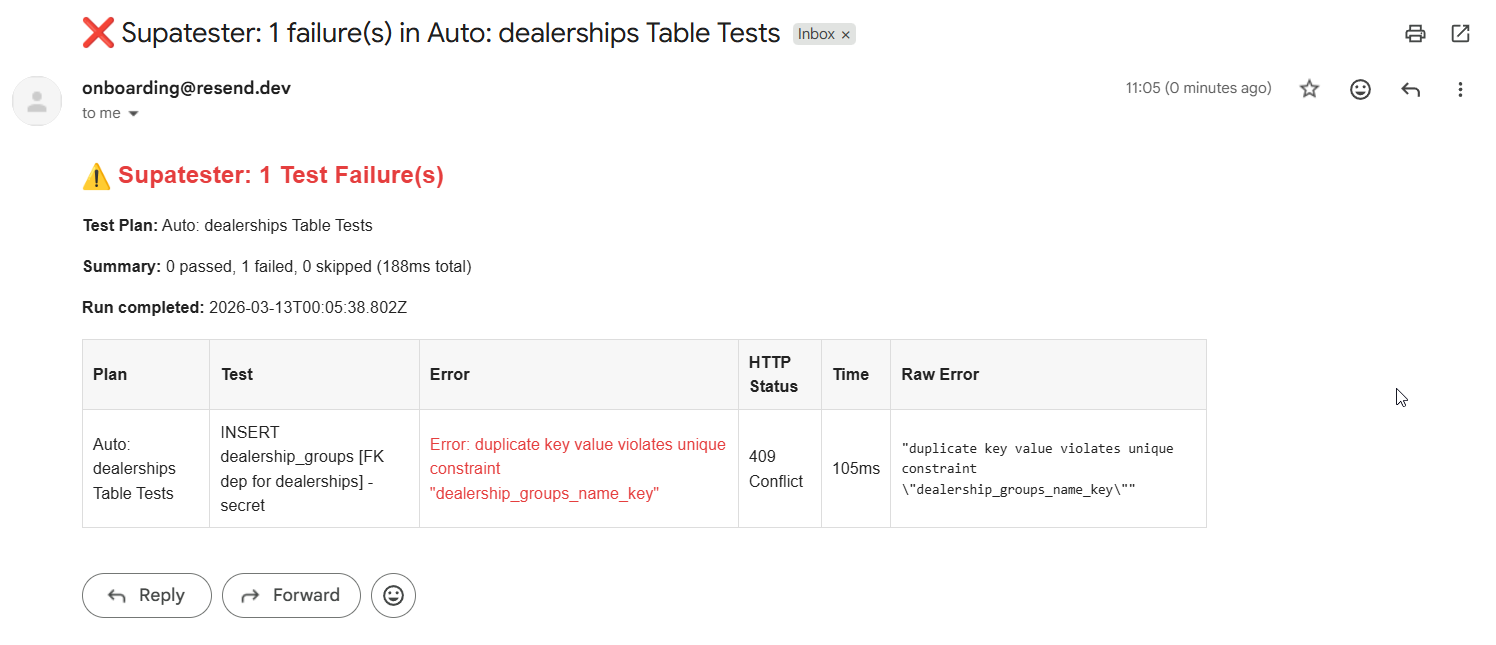
Example - Send Failure Alerts to Email
Step 1: Set Up Resend
- Create an account at resend.com
- Obtain your Resend API key
- Add it as a Supabase secret:
supabase secrets set RESEND_API_KEY=re_xxxxxxxxxx
supabase secrets set NOTIFICATION_EMAIL=email@address.com
Step 2: Create the Edge Function
Create a new Edge Function (supabase/functions/notify-test-failures/index.ts):
import { serve } from "https://deno.land/std@0.168.0/http/server.ts";
const RESEND_API_KEY = Deno.env.get("RESEND_API_KEY")!;
const NOTIFICATION_EMAIL = Deno.env.get("NOTIFICATION_EMAIL") || "team@yourcompany.com";
interface TestFailure {
testPlanName: string;
testName: string;
error: string;
criteriaUsed: string;
executionTime: number;
httpStatus?: number;
httpStatusText?: string;
response?: unknown;
rawErrorResponse?: string;
}
function escapeHtml(str: string): string {
return str.replace(/&/g, "&").replace(/</g, "<").replace(/>/g, ">");
}
function formatRawError(raw?: string): string {
if (!raw || raw === "null") return "—";
try {
const parsed = JSON.parse(raw);
return escapeHtml(JSON.stringify(parsed, null, 2));
} catch {
return escapeHtml(raw);
}
}
serve(async (req: Request) => {
try {
const results = await req.json();
const failures: TestFailure[] = results?.run?.failures ?? [];
// Only send email if there are failures
if (failures.length === 0) {
return new Response(
JSON.stringify({ message: "No failures, no email sent." }),
{ status: 200, headers: { "Content-Type": "application/json" } }
);
}
const stats = results.run.stats;
const planName =
results.run.executions?.[0]?.testPlanName ?? "Unknown Test Plan";
// Build email body with response details for debugging
const failureRows = failures
.map(
(f: TestFailure) =>
`<tr>
<td style="padding:8px;border:1px solid #ddd;">${escapeHtml(f.testPlanName)}</td>
<td style="padding:8px;border:1px solid #ddd;">${escapeHtml(f.testName)}</td>
<td style="padding:8px;border:1px solid #ddd;color:#e53e3e;">${escapeHtml(f.error)}</td>
<td style="padding:8px;border:1px solid #ddd;">${f.httpStatus ?? "—"} ${escapeHtml(f.httpStatusText ?? "")}</td>
<td style="padding:8px;border:1px solid #ddd;">${f.executionTime.toFixed(0)}ms</td>
<td style="padding:8px;border:1px solid #ddd;"><pre style="margin:0;font-size:11px;white-space:pre-wrap;">${formatRawError(f.rawErrorResponse)}</pre></td>
</tr>`
)
.join("");
const htmlBody = `
<div style="font-family:sans-serif;max-width:900px;">
<h2 style="color:#e53e3e;">⚠️ Supatester: ${stats.tests.failed} Test Failure(s)</h2>
<p><strong>Test Plan:</strong> ${escapeHtml(planName)}</p>
<p>
<strong>Summary:</strong>
${stats.tests.passed} passed,
${stats.tests.failed} failed,
${stats.tests.skipped} skipped
(${stats.duration.toFixed(0)}ms total)
</p>
<p><strong>Run completed:</strong> ${results.completedAt}</p>
<table style="border-collapse:collapse;width:100%;margin-top:16px;">
<thead>
<tr style="background:#f7f7f7;">
<th style="padding:8px;border:1px solid #ddd;text-align:left;">Plan</th>
<th style="padding:8px;border:1px solid #ddd;text-align:left;">Test</th>
<th style="padding:8px;border:1px solid #ddd;text-align:left;">Error</th>
<th style="padding:8px;border:1px solid #ddd;text-align:left;">HTTP Status</th>
<th style="padding:8px;border:1px solid #ddd;text-align:left;">Time</th>
<th style="padding:8px;border:1px solid #ddd;text-align:left;">Raw Error</th>
</tr>
</thead>
<tbody>${failureRows}</tbody>
</table>
</div>
`;
// Send email via Resend
const emailRes = await fetch("https://api.resend.com/emails", {
method: "POST",
headers: {
"Content-Type": "application/json",
Authorization: `Bearer ${RESEND_API_KEY}`,
},
body: JSON.stringify({
from: "Supatester <tests@yourcompany.com>",
to: [NOTIFICATION_EMAIL],
subject: `❌ Supatester: ${stats.tests.failed} failure(s) in ${escapeHtml(planName)}`,
html: htmlBody,
}),
});
const emailData = await emailRes.json();
return new Response(JSON.stringify({ message: "Email sent", emailData }), {
status: 200,
headers: { "Content-Type": "application/json" },
});
} catch (error) {
return new Response(
JSON.stringify({ error: (error as Error).message }),
{ status: 500, headers: { "Content-Type": "application/json" } }
);
}
});
Step 3: Deploy the Edge Function
supabase functions deploy notify-test-failures
Step 4: Create a Collection Item in Supatester
- Create a new Collection (e.g., "Test Automation")
- Add a new Edge Function request:
- Name:
notify-test-failures - Function:
notify-test-failures - Body:
{{$results}}
- Name:
Step 5: Configure the Completion Action
- Open the Test Plan
- Click Completion Action
- Set Action to "Run Collection Item"
- Select Collection Item:
Test Automation / notify-test-failures (Edge Function) - Set Auth Context to
Secret Key or Custom JWT(Edge Functions with "Verify JWT with legacy secret" enabled will need Custom JWT) - Click Save
Now whenever the Test Plan finishes and there are failures, you'll receive an email with a formatted table of all the errors. If all tests pass, the Edge Function returns early without sending an email.
Running a Test Plan
Click Run. Test cases execute sequentially and results appear in real time — each test shows a pass (✓) or fail (✗) result, the response time, and any error message on failure.
Click Stop at any time to abort the run.
Variables in Test Plans
If any request in the plan uses {{variable}} syntax, the variable extraction configuration on that request determines how values flow into later steps. Variables can be extracted from responses using JSON Path (e.g. data[0].id) or a Regex capture group.
Built-in variables are also available for auto-generated values: timestamps, UUIDs, and ULIDs — no extraction step required.
Supatester validates variable dependencies before running and will warn you if a variable is referenced before it is defined, if variables are unused, or if a circular dependency exists.
By clicking on variable tags on test cases you can manually enter a variable to be used for ensuring that the test case responds to the provided variable as expected. This method only provided a temporary variable that exist while you are on the page. The expectation is that the variable will be extracted by a previous test case when running with supatester-cli.
Extraction Rule Configuration
Each extraction rule has three settings:
| Setting | Description |
|---|---|
| Response Type | Which part of the Supabase response to extract from: Data Response (default), Error Response, HTTP Response, or All Responses. |
| Variable Name | The name of the variable to store the extracted value in. Referenced elsewhere as {{variableName}}. |
| Extract Using | The extraction method — JSON Path (dot-notation traversal) or Regex (first capture group). The expression field next to the method dropdown is where you enter the path or pattern. |
Response Types
Every Supabase client call returns a response object with multiple fields. The Response Type dropdown controls which part of that response the extraction rule operates on.
Data Response (default)
Extracts from the data field — the successful query result. This is the most common choice.
Example data value (an error was returned, so data contains the error object):
{
  "code": "42501",
  "details": null,
  "hint": null,
  "message": "new row violates row-level security policy for table \"plants\""
}
| Method | Expression | Extracts |
|---|---|---|
| JSON Path | code | 42501 |
| JSON Path | message | new row violates row-level security policy for table "plants" |
| Regex | "code":"([^"]+)" | 42501 |
| Regex | "message":"([^"]+)" | new row violates row-level security policy for table "plants" |
For a successful SELECT that returns an array of rows:
[
  { "id": 1, "name": "Alice" },
  { "id": 2, "name": "Bob" }
]
| Method | Expression | Extracts |
|---|---|---|
| JSON Path | [0].id | 1 |
| JSON Path | [1].name | Bob |
| Regex | "id":(\d+) | 1 (first match) |
Error Response
Extracts from the error field — the error message string returned by Supabase when a request fails.
Example error value:
new row violates row-level security policy for table "plants"
| Method | Expression | Extracts |
|---|---|---|
| Regex | policy for table \\"([^"]+)\\" | plants |
| Regex | ^(.+)$ | The full error string |
Note: The error field is a plain string, not a JSON object. JSON Path can still be used but Regex is usually more practical here.
HTTP Response
Extracts from the HTTP status fields. The data available to extraction is an object with two fields:
{
  "status": 401,
  "statusText": "Unauthorized"
}
| Method | Expression | Extracts |
|---|---|---|
| JSON Path | status | 401 |
| JSON Path | statusText | Unauthorized |
| Regex | "status":(\d+) | 401 |
| Regex | "statusText":"([^"]+)" | Unauthorized |
All Responses
Extracts from a combined object containing every part of the response. Useful when you need to capture values from different sections in a single rule, or when you aren't sure which section contains the value.
Example combined object:
{
  "data": {
    "code": "42501",
    "details": null,
    "hint": null,
    "message": "new row violates row-level security policy for table \"plants\""
  },
  "error": "new row violates row-level security policy for table \"plants\"",
  "status": 401,
  "statusText": "Unauthorized"
}
| Method | Expression | Extracts |
|---|---|---|
| JSON Path | data.code | 42501 |
| JSON Path | error | new row violates row-level security policy for table "plants" |
| JSON Path | status | 401 |
| JSON Path | statusText | Unauthorized |
| Regex | "status":(\d+) | 401 |
| Regex | "message":"([^"]+)" | new row violates row-level security policy for table "plants" |
Tip: When using All Responses with JSON Path, prefix data paths with
data.(e.g.data[0].idinstead of[0].id) and error paths witherrorsince the data and error fields are nested inside the combined object.
Extraction Method Details
JSON Path uses dot-notation to traverse the response object. Array indices are supported with bracket syntax: [0].id, items[2].name, nested.deep.value. If the resolved value is an object or array it is returned as a JSON string.
Regex serialises the response to a JSON string and runs the pattern against it. The first capture group ( ) is returned. If there is no capture group, the entire match is returned. This is useful for extracting values from strings that are not cleanly structured as JSON fields.
Run History
Every execution is saved to the Run History tab. Each entry includes a timestamp, overall pass/fail status, and individual test results. Configure how many historical runs to retain in the plan settings.
Use run history to compare results between schema changes and spot regressions.
Reports
Click Generate Report on any completed run to produce a formatted text summary suitable for sharing with stakeholders or attaching to a pull request.
File Attachments
For test cases that test storage uploads, click Attach File on the test case to select a file from disk. The file will be used as the upload payload when that test case runs.
Import and Export
Export any test plan as a JSON file to share with your team or commit to source control. Import a previously exported plan with conflict resolution for duplicate names.
Snapshots (Result-Set Comparison)
Snapshots let you capture the results of a test-plan run and compare future runs against them. Allowing for you to do pre/post database change comparisons.
- Run your test plan so that results are available.
- In the Snapshots tab, click Save Current Results.
- Up to 5 snapshots can be stored per test plan.
- Click the eye icon on any snapshot to compare it against the current results.
- Comparison highlights matches, mismatches, new tests (not in snapshot), and missing tests (in snapshot but not executed).
Ignore Ordering of Response
Snapshots have the “Ignore ordering” checkbox enabled by default. This means the comparison will not consider the order of rows in the response (for example, rows may appear in a different order, but all rows must still be present). Clear this checkbox if you want an exact comparison of the JSON responses.
Tip: Data saved in Results and Snapshots is limited to the first 10 rows. To prevent issues where item order or truncation affects snapshot comparisons, you should add an
ORDER BYclause to any query that returns a larger number of rows and where snapshot comparison matters.
Exclude Fields From Snapshot Comparison
In some cases, you may want to exclude certain fields from the snapshot comparison (for example, fields containing random values, timestamps, or other non‑deterministic data). To remove a field or column from comparison:
- Open the Snapshot tab.
- Click the snapshot item to expand it and display all test cases and results.
- For each relevant test case, click Response comparison selection to view all fields and columns included in the response. Select the fields or columns you want the snapshot comparison to ignore.
The Response Comparison are is broken into two sections, the first is the keys/attributes from the JSON response and the second is the HTTP Responses. For any responses you don't want compared, simply check the box on those items.
Snapshots are automatically included when you export a test plan and restored when you import it.